
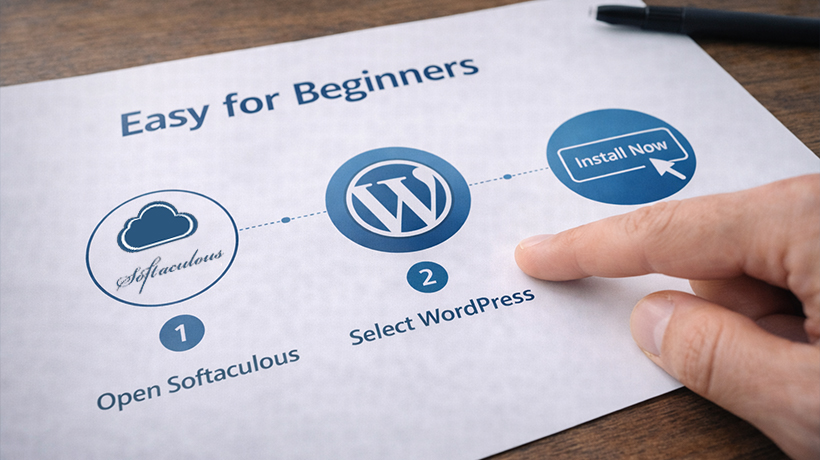
How to Install WordPress Using Softaculous in cPanel
Have you been researching a platform to create your very first website? Or perhaps you’re a seasoned webmaster ready to move from raw HTML, CSS, and JavaScript to open-source, PHP-powered WordPress.
Your next question might be: “How do I get started?” The good news is that it’s quick and easy.
Before You Begin
This guide assumes that you:
- have a web hosting account
- are using cPanel with Softaculous (although Softaculous works similarly on other control panels, such as DirectAdmin)
- have a domain and have already updated the nameservers accordingly
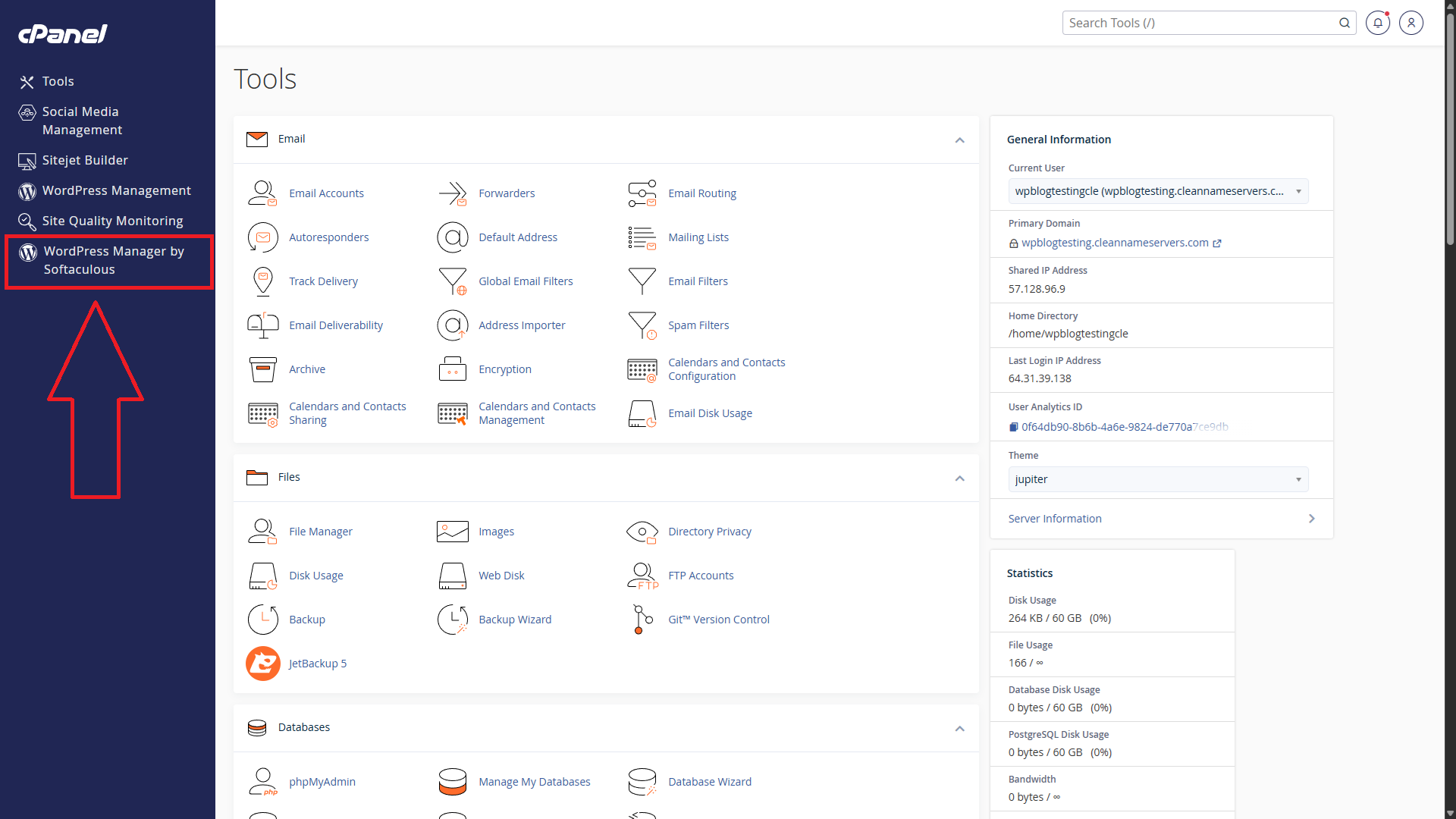
Step 1: Open WordPress Manager by Softaculous
Log in to cPanel and click WordPress Manager by Softaculous in the left-hand column.
 Step 2: Start the Installation
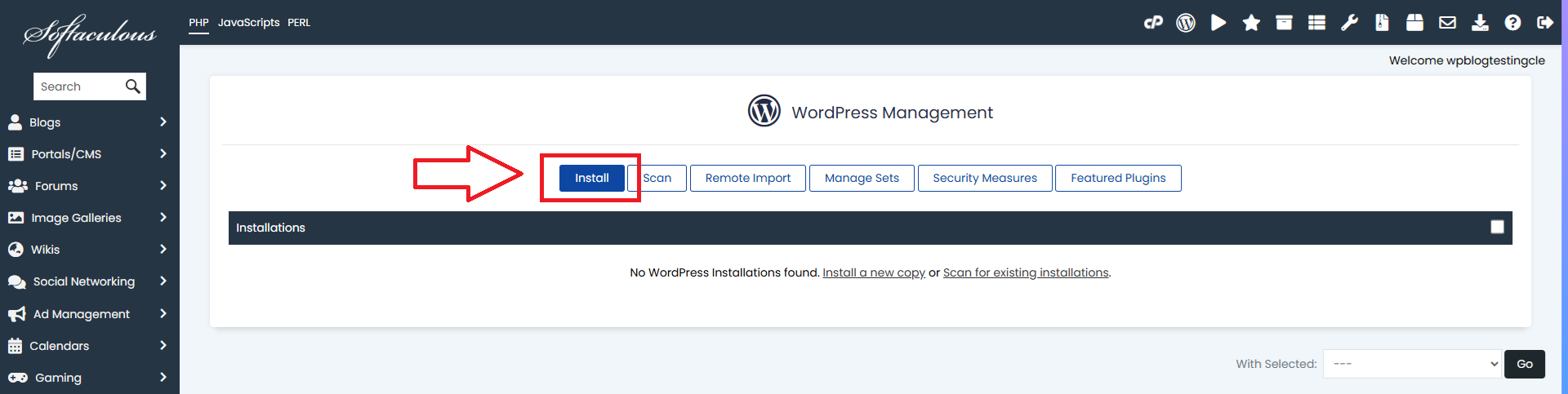
Click the Install button.
 Step 3: Review the Default Installation Settings
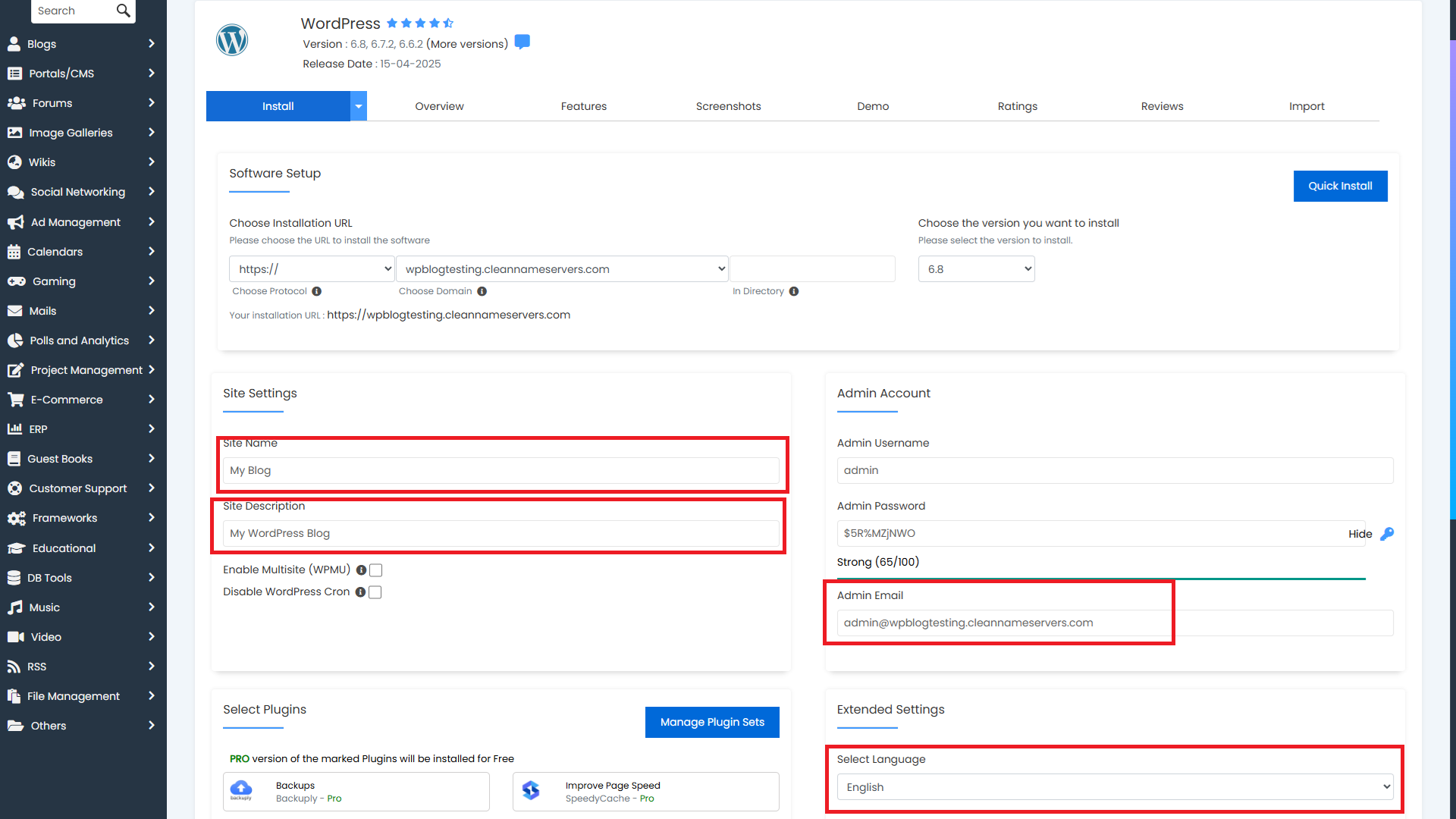
By default, Softaculous will install the latest version of WordPress in the root directory of your domain. It will also create the username admin and generate a secure random password for you.
Before continuing, you may want to customise a few fields, such as:
- Site Name
- Site Description
- Admin Email
- Select Language
 Step 4: Complete the Installation
Once you are happy with the settings, click Install.
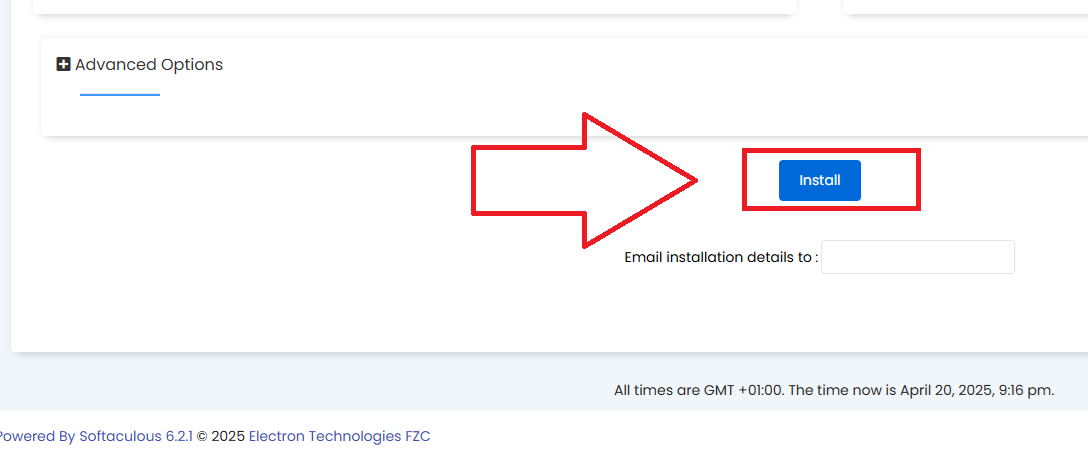
After that, you should see a confirmation message showing that WordPress has been installed successfully. You will also see an Administrative URL link, which logs you directly into the WordPress admin area.
Useful Features in Softaculous WordPress Manager
We also recommend exploring the Softaculous WordPress Manager, where you can make a wide range of changes, including:
- setting up a staging environment so you can test updates, plugins, or other changes before pushing them live
- enabling or disabling WordPress debug mode to help diagnose problems
- viewing your database in phpMyAdmin
- controlling your site’s search engine visibility for platforms such as Google and Bing
- managing automatic updates for WordPress core, themes, and plugins
- changing user passwords or adding new users
- adjusting advanced security settings, such as disabling directory browsing and blocking access to
xmlrpc.php
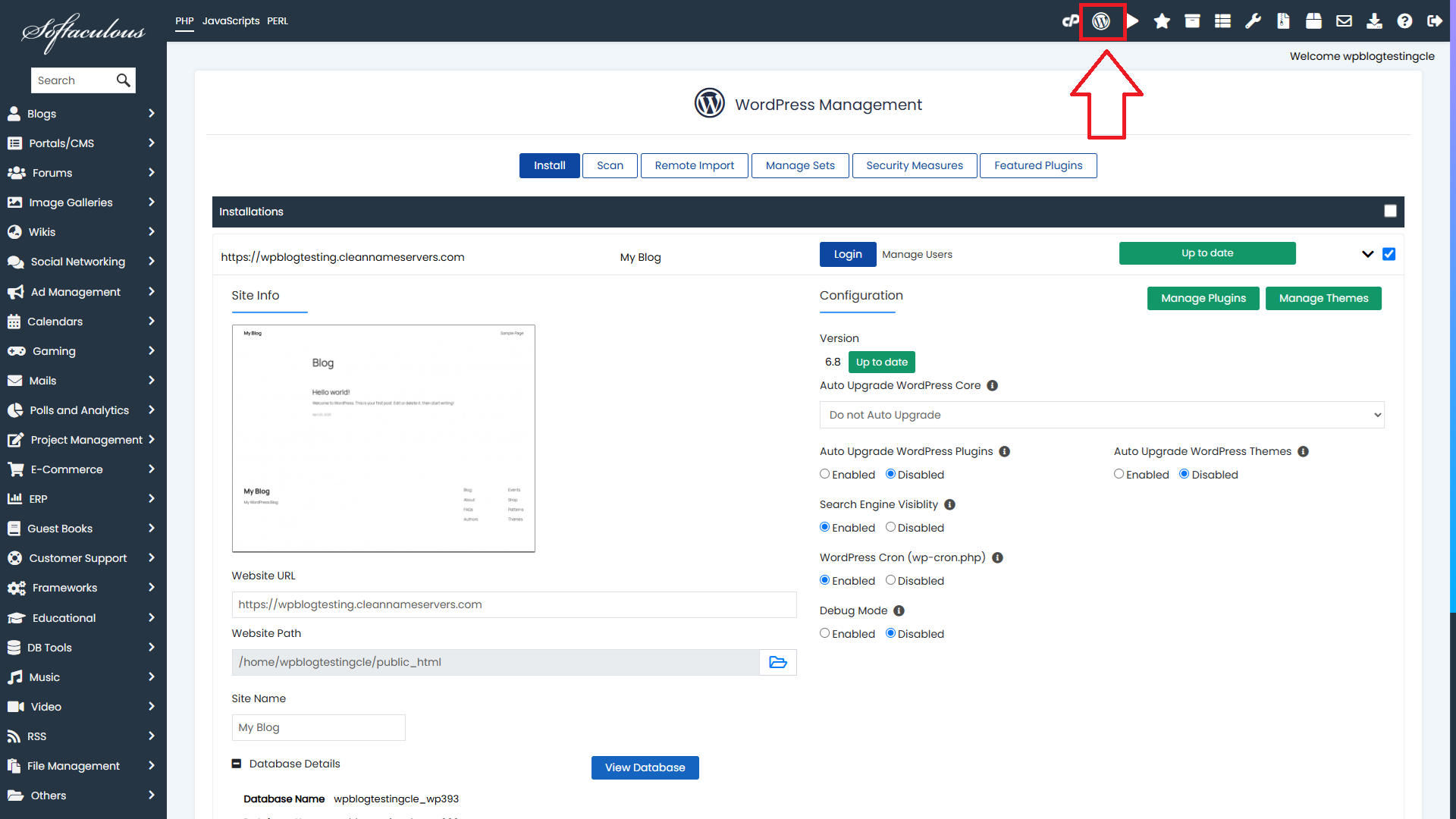
If you would like to learn more, Softaculous provides in-depth documentation covering the full functionality of the WordPress Manager.
Backups: Do You Need to Create Your Own?
This is a great question.
The short answer is: no.
Ethernet Servers maintains daily off-site backups for every web hosting account on its platform, with 30 days of restore points available.
Customers can restore data on demand through the JetBackup 5 option found in every cPanel account. Using this tool, you can choose exactly what you want to restore or download to your computer. For example, if you accidentally delete a file or folder, JetBackup allows you to recover just that item instead of restoring the entire account.
Even so, taking your own backups is still good practice. While it is not strictly required, having your own copy can provide extra peace of mind. We believe in our platform and regularly check our backup systems to ensure they are functioning properly.
Need Help With WordPress Hosting?
We hope you found this article helpful. If you need help setting up a WordPress site, or you need advice on optimising its performance, Ethernet Servers offers a range of WordPress-friendly packages starting at just $3/mo, backed by 99.9% uptime and helpful UK-based customer service.

Sitejet or SitePad? Choose the Right Website Builder
When to Upgrade from VPS to Dedicated Server?

VPS vs Dedicated Server: 10 Key Differences
WordPress Multisite Setup on cPanel & Cloudflare

openSUSE Leap 16 & openSUSE Tumbleweed Now Available!
