
If you haven’t heard of WordPress, there’s a good chance you’ve still used a website powered by it. As of April 2025, WordPress runs around 43% of all websites, which makes it one of the most widely used platforms on the web.
We use WordPress for our demo sites so potential customers can get a feel for the page load times they can expect on our platform.
We also like the fact that WordPress is free and open-source. On top of that, it has a huge community. That matters because if something goes wrong, you can usually find help quickly.
WordPress has been around for a long time. It first launched on May 27, 2003, and developers have refined it for years. If you install WordPress, use a strong unique password, and enable automatic updates, you already give yourself a strong starting point.
However, many security problems do not come from WordPress itself. They come from third-party plugins and themes.
Most webmasters add plugins to extend functionality. They might install one for contact forms, image sliders, SEO, backups, analytics, and much more. The problem is simple: many plugin authors focus more on features than security. If the plugin works, they often consider the job done. Unfortunately, that approach can leave serious weaknesses behind.
In our experience, many WordPress sites run at least ten plugins, and some run far more. Every plugin adds another layer of trust. In practice, that means you may rely on ten different developers or companies to keep your website secure.
That is often where things go wrong.
Today, we’ll cover a few practical steps that can help keep attackers out. As always, remember that security is a process, not a product.
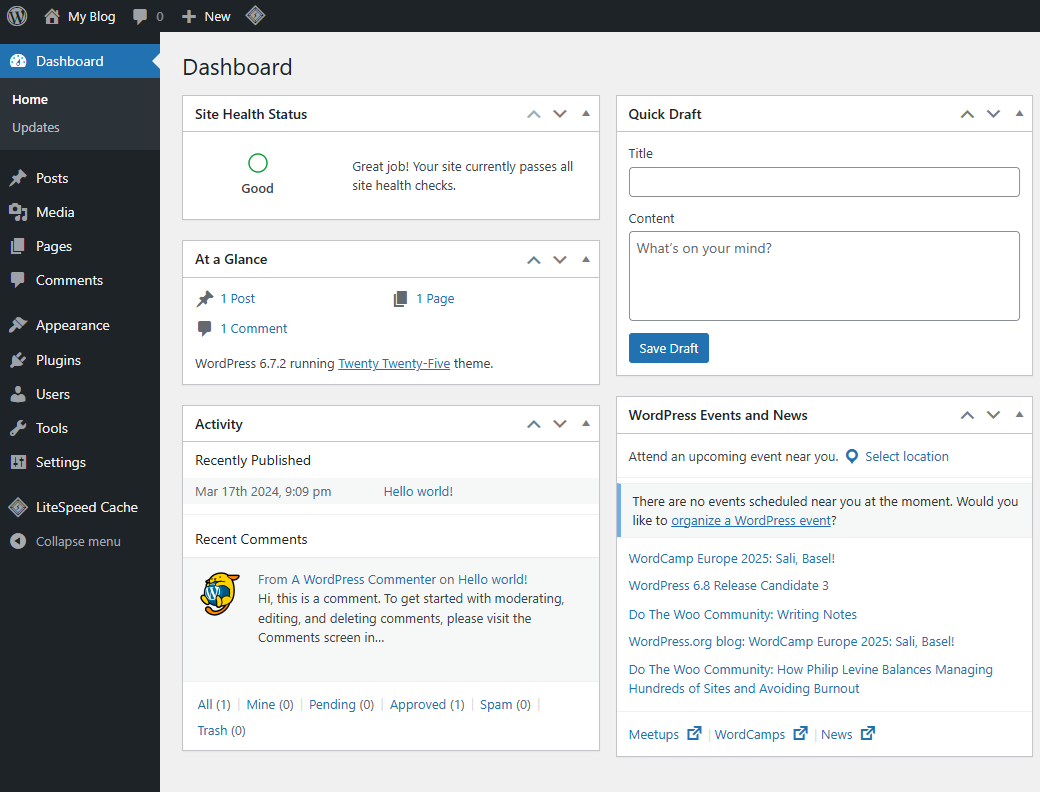
Keep plugins and themes to a minimum (and delete them, don’t just deactivate them)
As mentioned earlier, plugins often cause WordPress security problems.
That is why fewer plugins and themes usually means less risk.
If you do not need a plugin or theme, delete it. Do not just deactivate it. Deactivation only turns it off. The files still sit on your server, and an attacker may still target them.
We also see many webmasters use plugins for tasks they could handle in a better way elsewhere.
For example, some people install a plugin just to add Google Analytics code. If you already use Cloudflare, you could use Cloudflare Zaraz instead. We do that on the Ethernet Servers website. It moves that work away from your server and into the cloud, which means you have one less plugin to maintain.
Backups are another good example. Some website owners use a plugin to create daily backups and store them on the same server, often inside the wp-content directory. In many cases, your hosting provider already handles backups for you. If you have confirmed that, you may not need a backup plugin at all.
Removing an unnecessary backup plugin can save disk space. It can also reduce CPU usage, memory usage, and disk I/O during backup creation.
In short, every plugin or theme you remove cuts down your maintenance burden and lowers your risk.
Use an up-to-date version of PHP
WordPress runs mainly on PHP, so your PHP version matters for both security and performance.
As of April 15, 2025, the actively maintained PHP versions were 8.4.6, 8.3.20, 8.2.28, and 8.1.32.
If your website uses an older version, you should strongly consider updating. A newer version gives you the latest security fixes, and it will often improve performance too. The jump from PHP 7.4 to PHP 8.x, for example, can be significant.
We often see webmasters delay PHP updates because a plugin or theme does not support the newer version. That hesitation is understandable, but security should come first. If a plugin or theme does not support a version of PHP that still receives active updates, contact the developer and ask them to fix that. If they refuse, look for a better-maintained alternative.
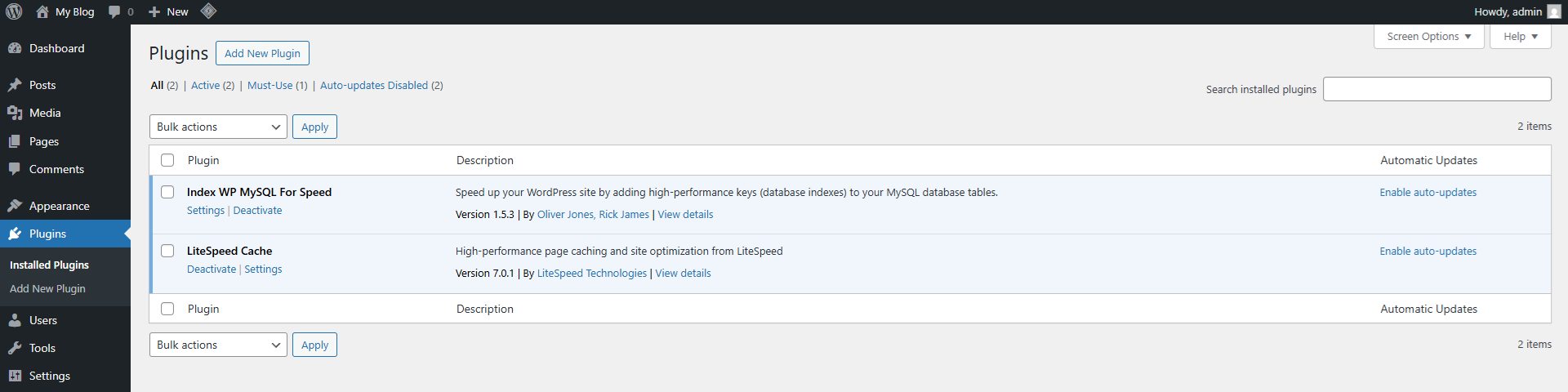
You can check your PHP version in WordPress by going to: WordPress Admin → Tools → Site Health → Info → Server
Lock down the admin area to trusted IP addresses
Some WordPress sites only need one person to log in. Others only allow access for staff in an office or through a company VPN.
If that sounds like your setup, you may want to restrict access to wp-admin and wp-login.php so only trusted IP addresses can reach them.
This approach works best if you have a static IP address or a fixed office or VPN IP range. If your IP changes often, this method may lock you out.
To do this, edit the .htaccess file in your WordPress directory and replace 192.168.1.1 with your own IP address:
Order Deny,Allow
Deny from all
Allow from 192.168.1.1
</Files>
To allow more than one IP address, use this instead:
Order Deny,Allow
Deny from all
Allow from 192.168.1.1
Allow from 192.168.1.2
</Files>
This adds another layer of protection and can stop many unauthorised login attempts before they even reach WordPress.
Use WordPress’ Site Health tool
WordPress includes a built-in Site Health tool that many users overlook.
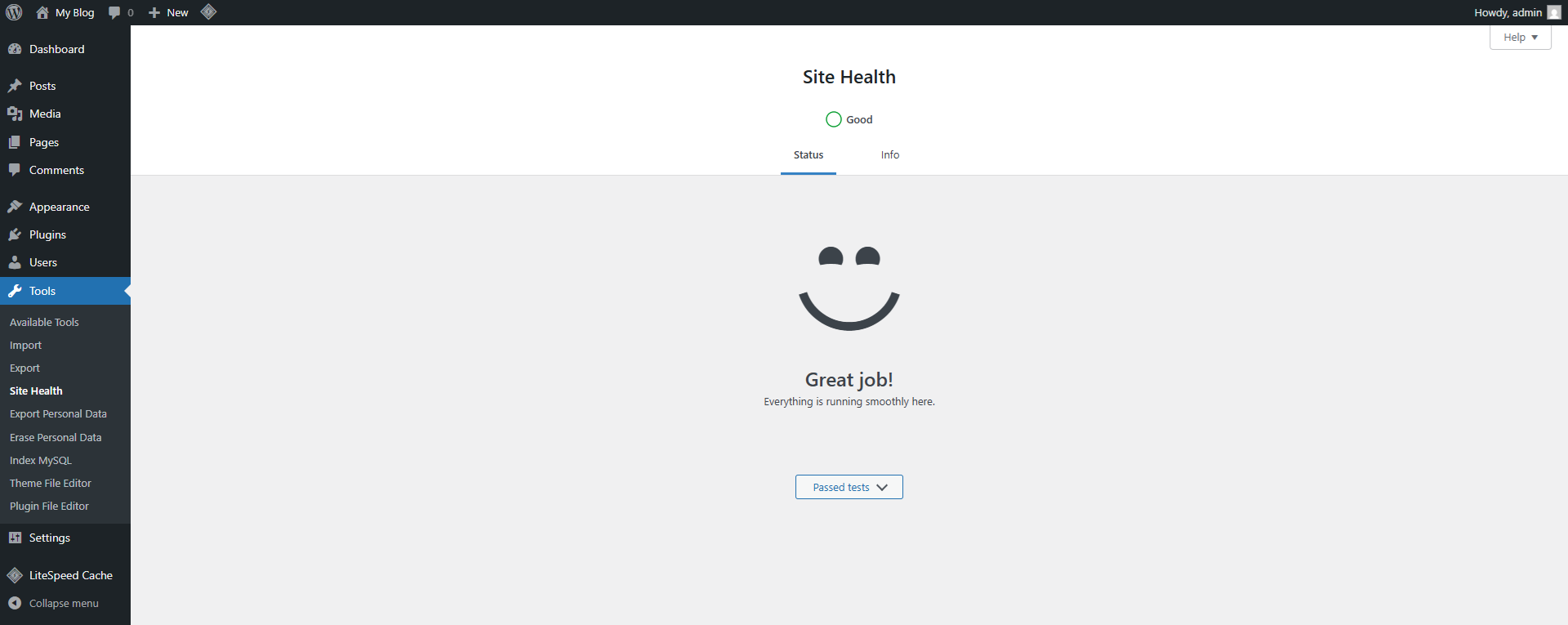
It checks your website for a range of issues, including several security-related items. At the time of writing, it checks 11 security areas in total.
You should review it from time to time by going to: WordPress Admin → Tools → Site Health
Ideally, your site will pass every security check.
We hope this guide helps you protect your WordPress website and avoid the stress that follows a hack. A compromised website can cause downtime, data loss, reputational damage, and a very long night.
Our team has extensive WordPress experience, so feel free to get in touch at any time to see how we can help with your website.

Sitejet or SitePad? Choose the Right Website Builder
When to Upgrade from VPS to Dedicated Server?

VPS vs Dedicated Server: 10 Key Differences
WordPress Multisite Setup on cPanel & Cloudflare

openSUSE Leap 16 & openSUSE Tumbleweed Now Available!
