We offer PHP 5.6, 7.0, 7.1, 7.2, 7.3, 7.4, 8.0, 8.1, 8.2, 8.3, 8.4 and 8.5, which can be adjusted in cPanel.
Checking a PHP version
- Log in to cPanel using your normal username and password.
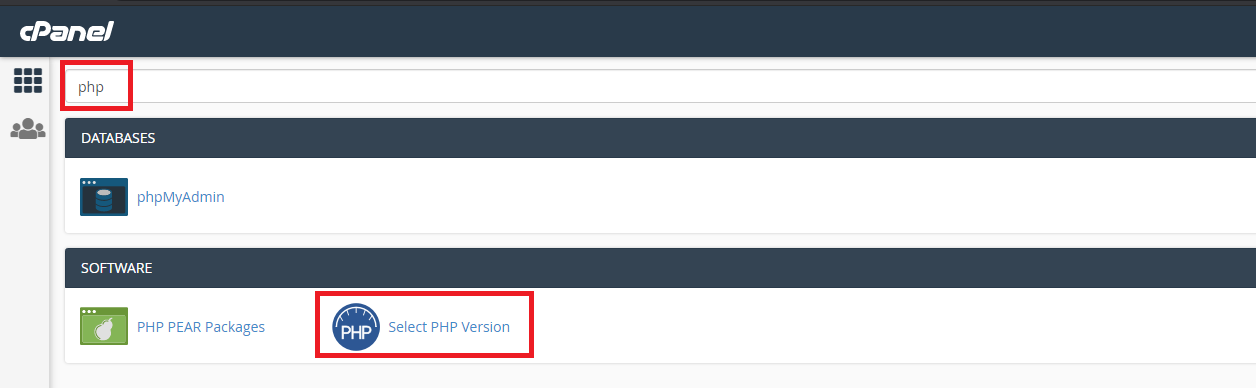
- Click on Select PHP Version (screenshot).
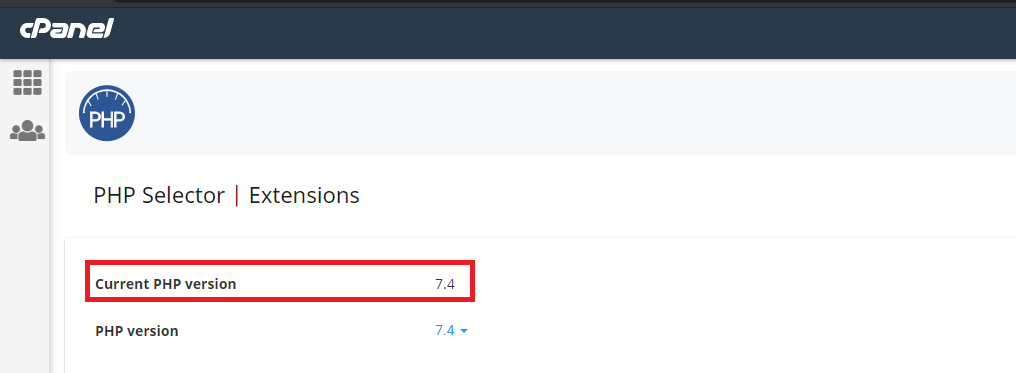
You will then see the current PHP version, like this.
Changing a PHP version (all domains)
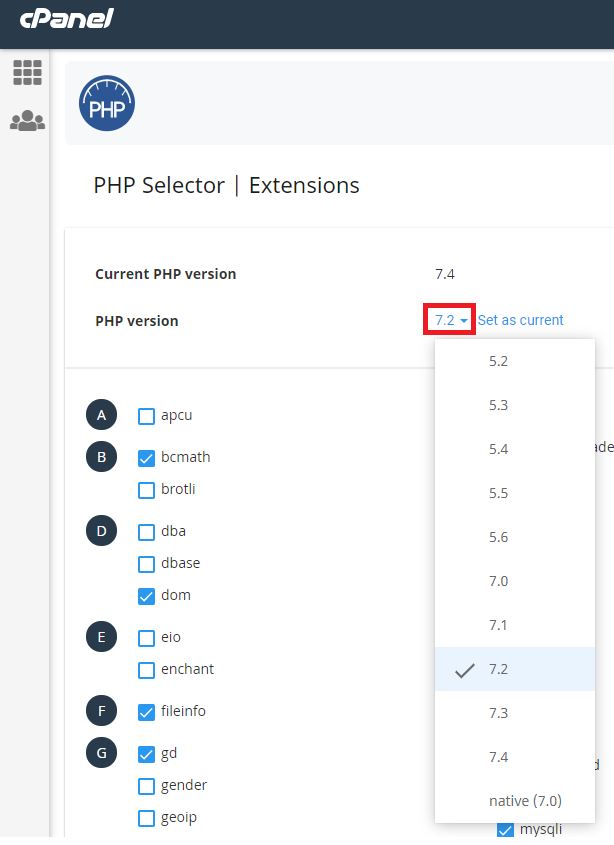
- In the same interface as above, click the blue drop-down icon next to PHP version, and select your desired PHP version (screenshot).
- Click Set as current.
The PHP version will then have changed.
Changing a PHP version (per domain)
- Go to the document root for the domain in question.
- Create a file called
.htaccess, or edit it if it already exists. - Insert the following:
<FilesMatch "\.(php4|php5|php3|php2|php|phtml)$">
  SetHandler application/x-httpd-alt-php71___lsphp
</FilesMatch>
Replace php71 accordingly. For example, PHP 8.5 would be php85, and PHP 5.6 would be php56.
.png)
.png)